

Saved Reports
You can create and save your own reports by going to "Reports > Saved Reports".
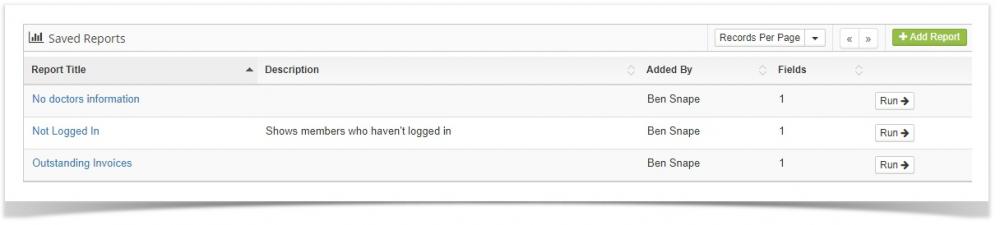
When creating reports you can select which fields are shown on it.
Here is an example to better explain how these work.
Let's say you want to create a report that lists all your members that don't have any doctor information added to their account. Here are the steps you would go through:
On the saved reports page, click on the "Add Report" button
Enter a title for the report such as "Members with no doctor info
Leave the "Report On" fields selected on "Members"
Enter a description if you like
Click "Add Report"
Select the columns you want to display in the report (the first and last names are shown by default)
Click "Update Report"
Click on the "Add Field" button
In the "Field" drop-down select "Doctor"
In the "Operator" field leave is on "Equal To"
In the "Value" field leave it blank
Click the "Add Field" button
Click on the "Run Report" button to view your members with no doctor information
The system is basically saying "show me all members where the "doctor" field is blank.
To export the report (if it lists any members) click on the "Export" button at the top right