

Website
For an extra £1 per month, you can have a club website that you can edit from within your MMC login.
To activate this, go to "Setup > Club Details" and click on the "Website" check box, then click update.
Now go to "Setup > Website" and you will see a page with the following 8 tabs.
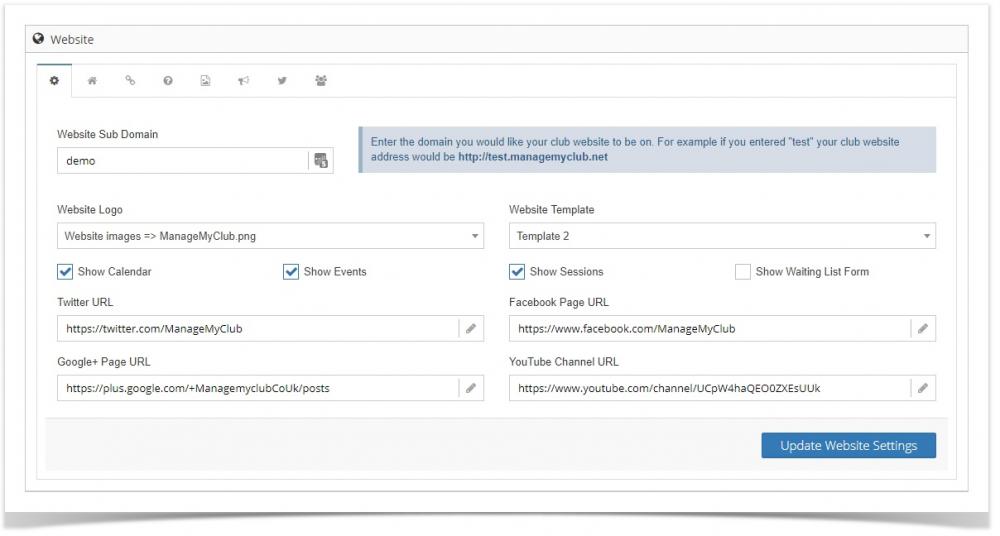
This tab holds your website settings and they are as follows:
Website sub-domain
Website logo
Website template
Show calendar
Show events
Show sessions
Show waiting list form
Social media pages
This tab holds the information that is displayed on your homepage. Use the editor to add test, images and links to documents etc.
This tab holds the information that is displayed on your useful links page. Use the editor to add test, images and links to documents etc.
This tab holds the information that is displayed on your about us page. Use the editor to add test, images and links to documents etc.
Use this tab to add image carousels. An image carousel is a selection of images that rotate around, like a gallery.
To add a carousel to a page, view the page in question, click into the editor where you would like it to be and click on the 2nd button from the right.
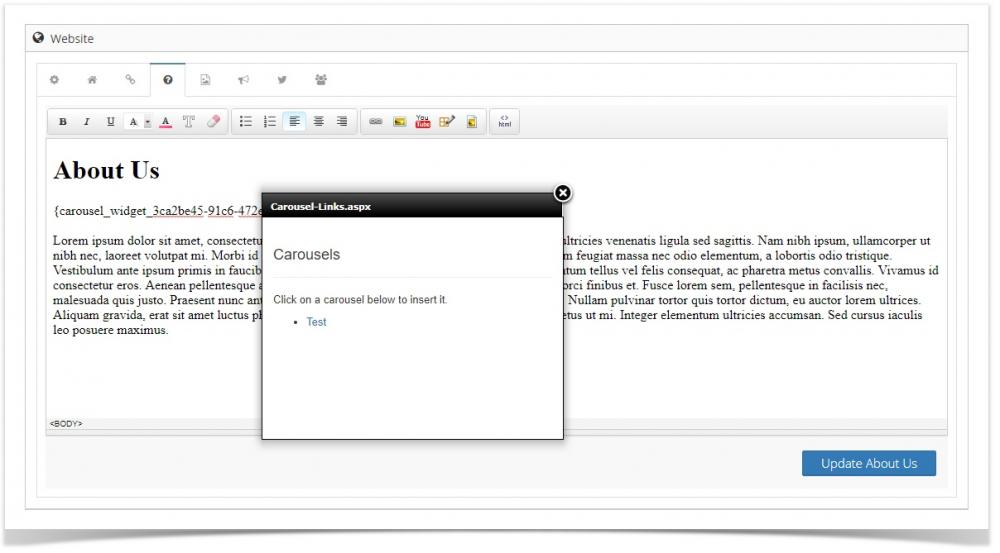
In the popup that appears, click on the carousel you would like to add to the page. A special code will be inserted and the carousel will be displayed in its place when the page loads on your website.
Use this section to add to your club latest news.
Enter your Twitter widget code here and it will be displayed in the website sidebar.
Enter any text you want to appear above your club who's who page.